Roku Smart Home
- 4.5
- Rating
- 1.00M
- Installs
- Free
- Price
 Analysis by App-foxy
If you are buying into Roku’s connected-home range for the first time, Roku Smart Home is designed to give you one place to get devices ready, adjust their settings, and keep an eye on what is happening at home while you are away. I found the app more useful as a practical control center than as a complete replacement for every smart-home platform. Its strongest point is the straightforward path from installing the app to managing compatible Roku smart-home equipment, while its main limitation is that its value depends heavily on whether your home already uses devices that fit into the Roku ecosystem.
The app sits in the House & Home category and is developed by Roku, Inc. and its affiliates. It is free to install, rated for Everyone, and supports devices running Android 9 or later. That combination makes it approachable for a household with mixed ages and fairly recent phones, although the free download should not be confused with every possible feature or service being free. Optional in-app purchases range from $3.99 to $119.99 per item, so I would check what a particular device or service includes before treating the app as a no-cost smart-home solution.
What to expect before you begin
My first recommendation is to think of Roku Smart Home as the app layer for compatible Roku home devices, not as a universal remote for every brand in your house. If your goal is to bring unrelated lights, locks, thermostats, and cameras from different manufacturers into one dashboard, a broader platform may be a better starting point. If you are already using Roku smart-home products, however, the app gives you a more focused place to set them up and manage them.
You May Also Like

 Blood Strike: 2.5 Anniversary
Blood Strike’s Loadouts Turn Every Drop Into a Tactical Gamble
A close look at Blood Strike’s custom loadouts: how fast access to signature weapons reshapes its battle royale rhythm, rewards preparation, and narrows the gap between fights.

 Pandora - Music & Podcasts
Pandora’s Music Is Easy to Start, but Harder to Recover
Pandora’s strength is its low-effort path from a seed to a station. Its weak spot is how much confidence it asks you to place in connection, setup, and quiet recovery.

 8 Ball Pool
 Is Built on Rivalries, Rematches, and Routine
A close look at the rivalries, rematches, shared routines, and unanswered safety questions that turn a quick pool match into a persistent mobile community.

 Samsung Music
’s Quiet Strength Is Playing What You Already Own
Its reach comes less from spectacle than from dependable access to a personal library. That simplicity is both the app’s strongest retention engine and its ceiling.

 AccuWeather: Weather Radar
AccuWeather Review: A Quick, Clear Forecast for Everyday Decisions
For everyday plans, the best forecast is the one you can understand quickly. AccuWeather makes rain timing, radar, and local conditions easy to act on, with a few trade-offs.

 Hill Climb Racing
Why Hill Climb Racing Still Turns Crashes Into One More Run
A tiny car, a bumpy hill and one more upgrade: Hill Climb Racing keeps resurfacing because its simple chaos makes every near-miss feel personal.
More From Our News Desk



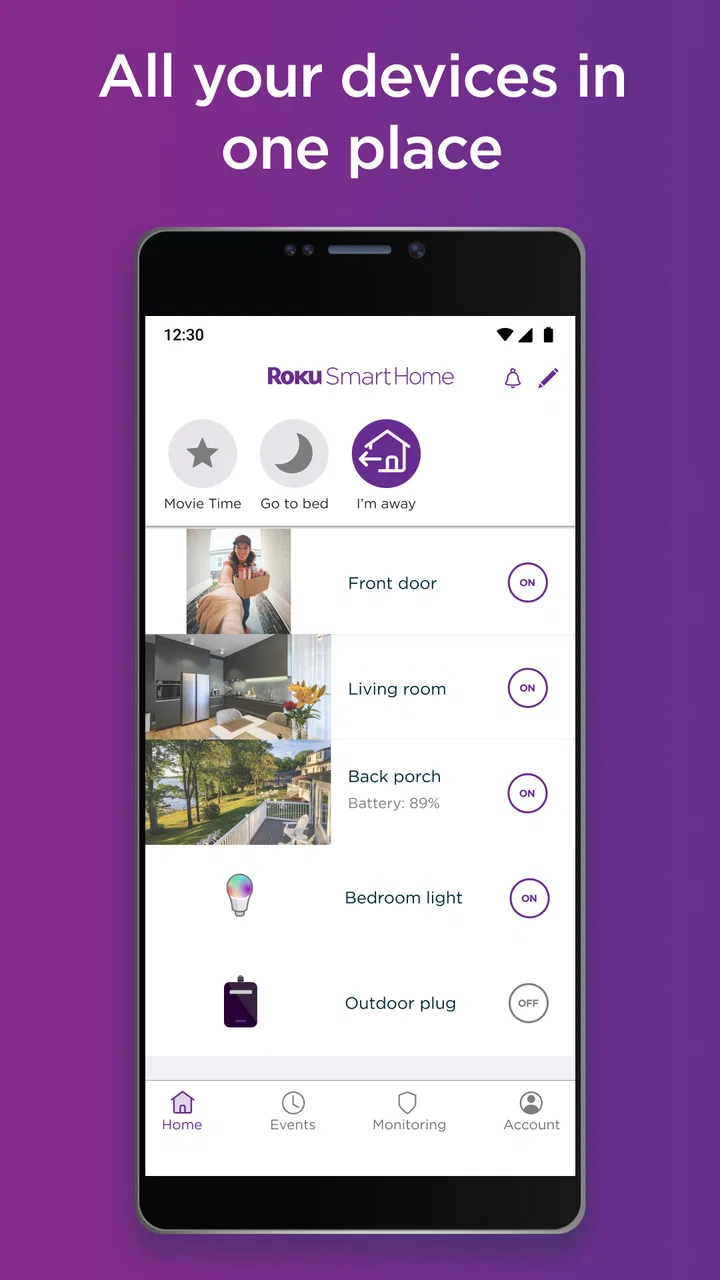
The store summary emphasizes three jobs: setting up devices, customizing settings, and monitoring your home from anywhere. In daily use, that translates into a workflow rather than a single flashy feature. You add a device, finish its connection process, decide how it should behave, and return to the app when you want to check its status or change something. I like this narrower purpose because it reduces the number of unrelated menus, but it also means the app is not especially compelling on its own if you do not own compatible hardware.
Its public reception is encouraging without being a guarantee for every household. The app holds a 4.4 average from around 51 thousand ratings, with roughly 7.6 thousand written reviews, and it has passed one million installs. I read those figures as evidence that the basic experience works for many people, not as proof that every device pairing will be effortless. Smart-home setup is affected by the phone, home network, device model, and account details, so your own route can still involve a little troubleshooting.
The current release is version 3.4.0.551. I would update before beginning a new installation, especially if the app has been sitting on your phone for a while. A current app version can make the first session less confusing, and it gives you the best chance of seeing the same menus and setup flow described in the device instructions.
Who will get the most from it
I think Roku Smart Home is a sensible choice for someone who wants a guided way to manage Roku-compatible equipment without building a complicated automation system from several brands. It can also suit a family member who prefers a dedicated app with familiar language instead of a large smart-home hub full of options that may never be used.
It is less suitable for a person who wants one app to control an already mixed collection of products. In that situation, the platform supplied by your phone manufacturer or a broad home-automation service may offer wider compatibility. I would also skip this app as a first purchase if you are only looking for a general home-monitoring tool and have no plans to use Roku hardware. The app itself cannot make unsupported equipment part of the Roku system.
From installation to a useful first result
I’d begin by treating setup as a small, deliberate test rather than a race to add every device in the house. Placing the equipment where it will actually be used, then checking one real control or status, helps separate a useful result from a setup screen that merely says everything is connected. From there, clear naming and a simple first routine make the app easier for everyone at home to use.
Start with the device, not just the app
Before opening the app, I would put the Roku smart-home device you want to use in its intended room and keep its model information nearby. This small preparation matters because a setup that begins with the phone in one room and ends with the device installed somewhere else can make it harder to tell whether a problem comes from placement, connectivity, or the app. Starting at the final location also lets you test the result where you will actually use it.
After installing Roku Smart Home, follow the on-screen setup for the relevant device rather than exploring every setting immediately. The best first session is deliberately narrow: add one device, give it a clear name, confirm that it appears in the app, and perform one basic action. I would avoid adding several products at once. If something goes wrong, a single-device setup makes the cause much easier to identify.
Use names that describe both the object and its location. “Living room camera” or “front entry device” is more helpful than a model number when you are tired, away from home, or asking another person in the household to check something. This is a small but important quality-of-life improvement, because the app’s usefulness grows with the clarity of the information you put into it.
The first successful action
Once the device appears, do not stop at the setup confirmation. I recommend immediately changing one setting or checking one live status, depending on the type of equipment you installed. That gives you a meaningful success instead of merely proving that the app accepted the device. If you are setting up a monitoring product, check its current view or status from the app. If you are adding another kind of Roku smart-home device, use the available control that matters most in your normal routine.
Then close the app, wait a moment, and open it again. This simple test is useful because it confirms that the device remains associated with your account after the initial setup screen disappears. I would also try the same action from a different room before relying on the system. The practical question is not just “did pairing finish?” but “can I find and use this device when I need it?”
A realistic example would be installing a compatible monitoring device near an entryway before leaving for work. I would name it for that location, complete the setup, confirm its status while still at home, and later open Roku Smart Home from outside the house to see whether the information I need is available. That sequence tests the entire reason many people buy connected-home equipment: not just local control, but confidence when they are elsewhere.
Make customization useful rather than decorative
The customization tools are most valuable when they reduce repeated decisions. I would review the device settings after the first successful action and change only the options that affect how you actually use the product. Avoid adjusting everything simply because it is available. Too many changes at once make it difficult to remember which setting produced a result you like.
One non-obvious advantage of a focused app is that it can become a household reference point. If another person needs to check a device, a clear name and a small number of sensible settings are easier to explain than a collection of personal shortcuts. I would treat the initial setup as documentation for the next person who opens the app, not just as a private configuration exercise.
Common confusion during setup
The most likely source of frustration is assuming that installing the app automatically makes every smart device in the home visible. It does not work that way. The app is centered on compatible Roku smart-home equipment, so the device still needs to be added through the appropriate process. If you are comparing it with a general smart-home hub, this is the key distinction: Roku Smart Home is more focused, while a broader platform may be more flexible across brands.
Another common mistake is treating a completed pairing screen as the end of the job. I would always look for the device in the main device area, open its controls, and perform a real action. If the device is present but the control is not useful, return to its settings and check the name and configuration rather than repeatedly reinstalling the app.
It is also easy to confuse the free app with the total cost of owning a smart-home setup. The app can be downloaded without an upfront price, but compatible hardware and optional purchases are separate considerations. Since individual in-app purchases can run from $3.99 to $119.99, I would read the purchase screen carefully and decide whether the extra option solves a problem you genuinely have. A feature that sounds convenient is not automatically worth adding to a simple setup.
When remote monitoring feels different from local control
At home, a device may feel immediate because your phone and the equipment are nearby. Away from home, the important question becomes whether the app shows the information or control you need at that moment. I would test remote access before depending on it for a time-sensitive situation, such as checking an entryway or confirming a device’s state while traveling.
This is also where expectations should stay realistic. A monitoring app can help you see what is happening, but it does not remove the need for sensible household security practices. I would use a strong account password, keep the phone protected, and avoid giving casual access to the account. These are not Roku-specific tricks; they are basic habits that matter more once an app can reveal information about your home from outside it.
Useful routines after the first day
After the first successful session, I would create a short routine for checking the app rather than opening it constantly. For example, review the device before leaving home, use the app when you need a remote check, and revisit settings only when your routine changes. This keeps the app helpful instead of turning it into another source of notifications and small decisions.
A second practical tip is to add devices one at a time and test each one before moving on. This is especially helpful in a household where several people may install or use the equipment. If a later device behaves differently, you will have a clear baseline from the first one. It also makes it easier to explain the setup to someone who did not perform the original installation.
A third trade-off is worth keeping in mind: a focused ecosystem can be easier to understand, but it can limit your choices later. If you expect to expand into many brands, compare compatibility before buying more hardware. If you prefer a small, consistent collection of Roku devices, the simplicity may be more valuable than maximum flexibility.
How it compares with the usual alternatives
Compared with a manufacturer-neutral smart-home platform, Roku Smart Home feels more direct when all your relevant equipment belongs to the Roku family. You spend less time searching through unrelated integrations and more time on the devices the app is meant to manage. The compromise is that a broader alternative may handle a wider range of products and create more elaborate cross-brand routines.
Compared with using separate manufacturer apps, Roku Smart Home can be more convenient when you want your compatible Roku equipment in one place. Separate apps may still be preferable when a particular device maker offers deeper controls, more detailed history, or specialized settings that are not central to Roku’s experience. My advice is to use the Roku app for the everyday actions you repeat and keep a manufacturer app available when advanced device-specific control matters.
Compared with traditional, non-connected home equipment, the appeal is remote access and centralized management rather than a dramatic change to every household task. If you rarely need to check or adjust anything while away, a simpler product may be cheaper and easier. The app earns its place when the ability to monitor or change a compatible device from your phone genuinely saves time or reduces worry.
Who should skip it
I would not choose Roku Smart Home solely because it is free. The app makes sense when it matches the hardware you plan to use. Someone with no Roku smart-home devices, or someone committed to a different ecosystem, will probably get more value from the platform already connected to their equipment.
I would also hesitate if your priority is highly advanced automation across many brands. A focused Roku environment may be easier for a first-time user, but that simplicity is not the same as unlimited customization. Decide whether you value a shorter learning curve or a larger set of integrations before committing your home around it.
My final take after using the workflow
Roku Smart Home is at its best when it turns compatible Roku equipment into a clear, repeatable daily routine. I like the idea of beginning with one device, giving it a useful name, confirming a real action, and then expanding only when the first setup feels dependable. That approach makes the app reassuring for beginners without pretending that smart-home technology is always frictionless.
The free price and Everyone age rating make it easy to try, and the strong user response suggests that many people find the core experience worthwhile. Still, the app should be judged alongside the hardware and optional purchases you intend to use. The version available now is 3.4.0.551, and the minimum requirement of Android 9 keeps it accessible to many existing phones, but compatibility and ecosystem fit matter more than the download itself.
My recommendation is simple: install it if you already own, or are seriously considering, Roku-compatible smart-home devices and want a focused control point. Begin with one meaningful task, test it both at home and away, and only then add more equipment or paid options. If you need a universal smart-home command center, look elsewhere. For a first-time Roku household that wants setup, everyday adjustments, and remote monitoring in one familiar place, this app is a practical starting point.
Roku Smart Home is free to download, but I would make the hardware decision first and treat the app as the tool that makes that decision useful. That order keeps expectations realistic and gives you the best chance of reaching the moment that matters: opening the app and successfully managing your home without having to think about the technology behind it.
FAQs for Roku Smart Home
01What features does the Roku Smart Home app offer?
The Roku Smart Home app allows users to control and monitor their Roku devices, such as TVs and streaming sticks, directly from their smartphone. It offers features like remote control functionality, voice commands, private listening with headphones, and the ability to browse and launch channels. Additionally, it supports managing other smart home devices that are compatible with Roku.
02Is the Roku Smart Home app compatible with all Roku devices?
The Roku Smart Home app is compatible with most Roku streaming players, Roku TVs, and other Roku-enabled devices. However, it is always a good idea to check the specific compatibility of your device model with the app. Some older models might not support all features, so ensure your device firmware is up-to-date.
03Can I use the Roku Smart Home app to control non-Roku smart home devices?
Yes, the Roku Smart Home app supports integration with certain non-Roku smart home devices. This includes select smart lights, cameras, and other IoT gadgets that are compatible with the Roku ecosystem. Check the app for a list of supported devices and available integrations to ensure compatibility with your existing smart home setup.
04Does the Roku Smart Home app require a subscription?
The Roku Smart Home app itself is free to download and use. However, some features may require subscriptions, such as accessing premium channels or services through the Roku platform. Additionally, third-party smart home devices may have their own subscription requirements for advanced features or cloud storage options.
05Is the Roku Smart Home app available for both Android and iOS?
Yes, the Roku Smart Home app is available for both Android and iOS devices. You can download it from the Google Play Store for Android or the Apple App Store for iOS. Ensure your smartphone meets the minimum OS requirements to enjoy a seamless experience with the app.
Pros
- Easy setup and integration with other devices.
- User-friendly interface for quick navigation.
- Wide range of supported smart home devices.
- Reliable performance with minimal lag.
- Regular updates enhance functionality.
Cons
- Limited compatibility with some older devices.
- Advanced features may require subscriptions.
- Occasional connectivity issues reported.
- No offline mode for certain functionalities.
- Customer support can be slow to respond.

Roku Smart Home
Gallery